
• Home
  • Plugins
    • BSK PDF Manager
    • BSK Forms Blacklist
    • BSK Forms Validation
  • Documentations
    • BSK PDF Manager
    • BSK Forms Blacklist
    • BSK Forms Validation
  • Blog
  • Contact Us
  • Your Account
    • Purchase History
    • Checkout

Add entry / submission IP Address to an IP List

Starting from the Pro version 4.3, the "BSK Forms Blacklist Actions" section allows you to manage the IP addresses from which form submissions are received. This feature enables you to easily block or allow a specific IP address to prevent spam or malicious activity.

  • For Gravity Forms, Formidable Forms, and WPForms: This section is located on the bottom right side of each form entry.

  • For Forminator: This section is located at the bottom of each individual submission.


Step 1: Locate the IP and the Action Section

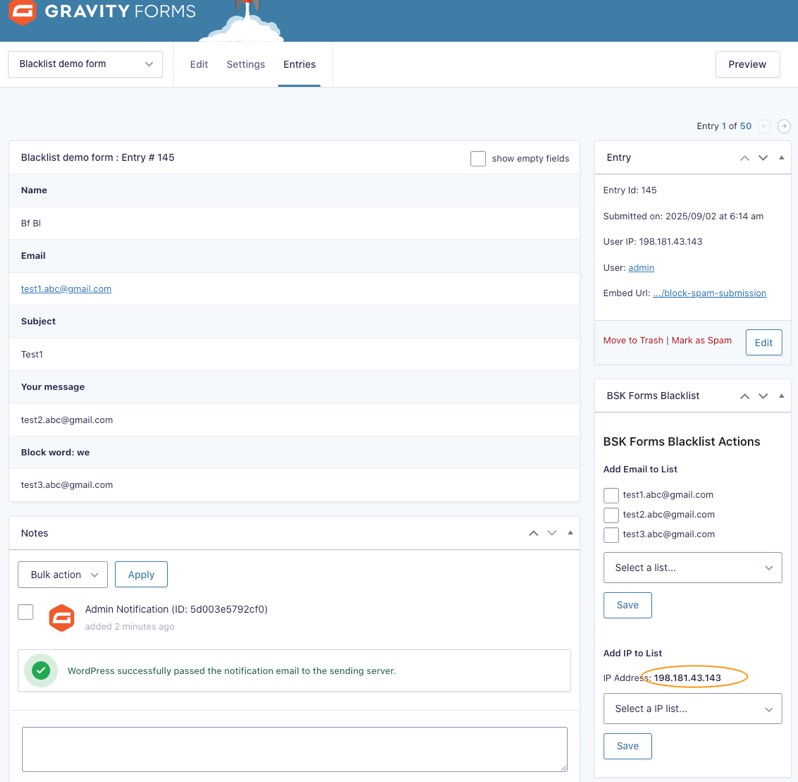
The IP address is typically displayed within the entry details page. The "BSK Forms Blacklist Actions" section, which contains the list dropdown and Save button, is located as described above.

The IP address and the action section can be found in the entry view, as shown in the screenshot below.
 

Step 2: Choose a List

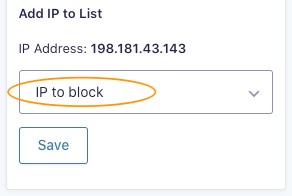
From the "BSK Forms Blacklist Actions" section, select your desired target list (e.g., "IP Block List" or "IP Allow List") from the dropdown menu.

Choose your preferred list from the available options, as demonstrated in the screenshot below.


Step 3: Save and Confirm

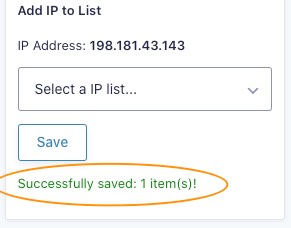
Click the "Save" button. The system will immediately add the IP address from this submission to the chosen list and display the operation result.

The result of the action will be returned instantly.
 

Purchase BSK Forms Blacklist Pro

Installation

  • How to install
  • Upgrade to Pro version
  • Check version and update automatically
  • Update new version manually
  • Settings

    • Choose form plugin
    • Plugin Settings
    • Gravity Form Settings
    • Formidable Form Settings
    • WPForms Form Settings
    • Contact Form 7 Form Settings
    • Forminator Form Settings
    • Create list and add keywords / emails / IP address

      • Create Blacklist and White List
      • Add / import keywords to Blacklist and White List
      • Special tags for item / keyword
      • Add Email list and add / import emails
      • Add Email(s) to a List from form entry / submission
      • Add IP list and add / import IP address
      • Add IP list by country
      • Add entry / submission IP Address to an IP List
      • Add Invitation Codes List and Generate codes
      • Apply list to form field

        • Gravity Forms – Apply Blacklist / White List
        • Gravity Forms – Apply Email list / IP List
        • Gravity Forms - Apply Invitation Codes List
        • Formidable Forms - Apply Blacklist / White List
        • Formidable Forms - Apply Email List / IP List
        • Formidable Forms - Apply Invitation Codes List
        • WPForms - Apply Blacklist / White List
        • WPForms - Apply Email List / IP List
        • WPForms - Apply Invitation Codes List
        • Contact Form 7 - Apply Blacklist / white list
        • Contact form 7 - Apply Email list / IP list
        • Contact Form 7 - Apply Invitation Codes List
        • Forminator - Apply Blacklist / white list
        • Forminator - Apply Email list / IP list
        • Forminator - Apply Invitation Codes List
        • Examples

          • Blacklist Example
          • White List Example
          • Email List Example
          • IP List Example
          • Invitation codes List Example
  • Licensing
  • Refund Policy
  • Affiliate Area


Copyright © 2026 BannerSky

BannerSky