
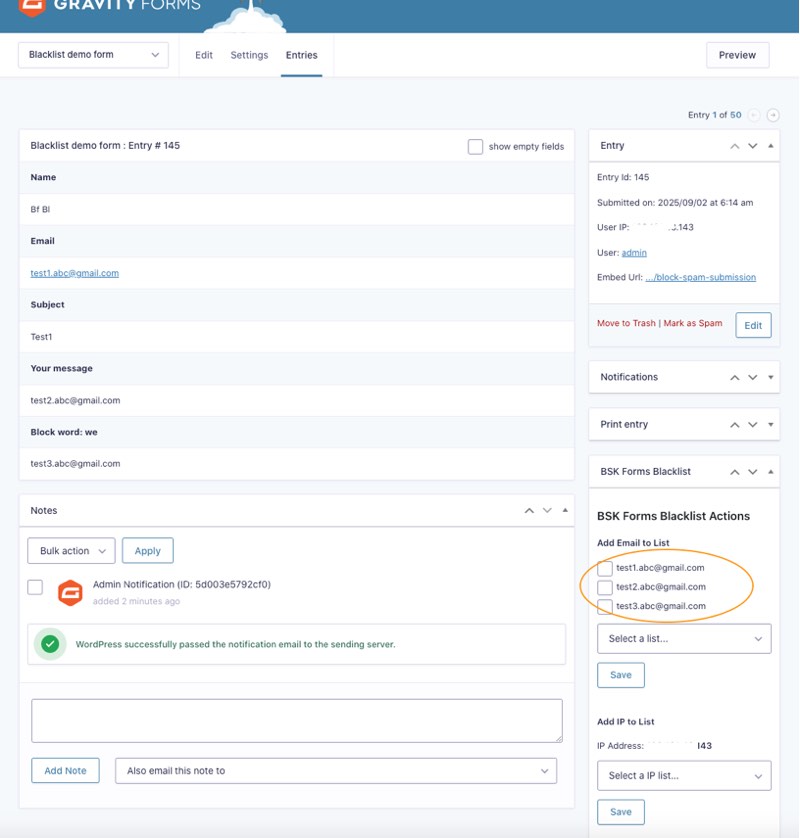
Starting from the Pro version 4.3, a new section named "BSK Forms Blacklist Actions" has been added to assist you in managing your email lists directly from your form submissions. This feature allows you to easily block or allow specific email addresses, helping you prevent spam submissions effectively.
- For Gravity Forms, Formidable Forms, and WPForms: This section is located on the bottom right side of each form entry.
- For Forminator: This section is located at the bottom of each individual submission.
Step 1: Select the Email(s)
From the "BSK Forms Blacklist Actions" section, check the box next to the email address(es) you wish to add to a list.
You will see a list of submitted emails. Select the desired ones as shown in the screenshot below.
Step 2: Choose a List
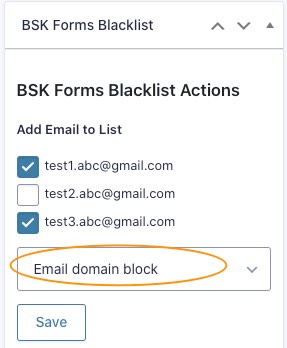
Select your desired target list (e.g., "Black List" or "Email List") from the dropdown menu.
Choose your preferred list from the available options, as demonstrated in the screenshot below.
Step 3: Save
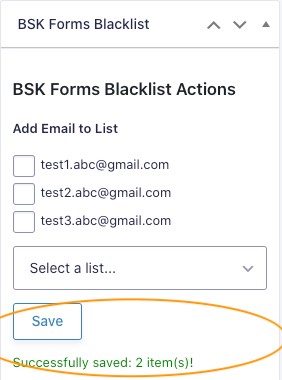
Click the "Save" button. The system will immediately add the selected email(s) to the chosen list and display the operation results.
The results of the action will be returned instantly.
Purchase BSK Forms Blacklist Pro